Maximize Your User Spoon Survey Form 100%
Create a Survey Form
After logging into User Spoon, create a team and click the [+] button.
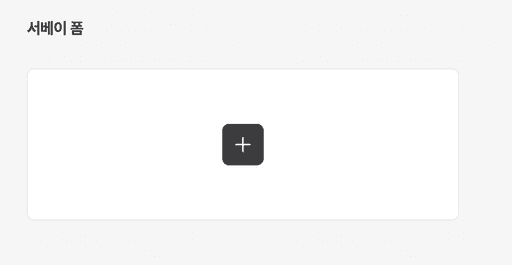
Enter the name of the survey form and move to the survey form editing screen.
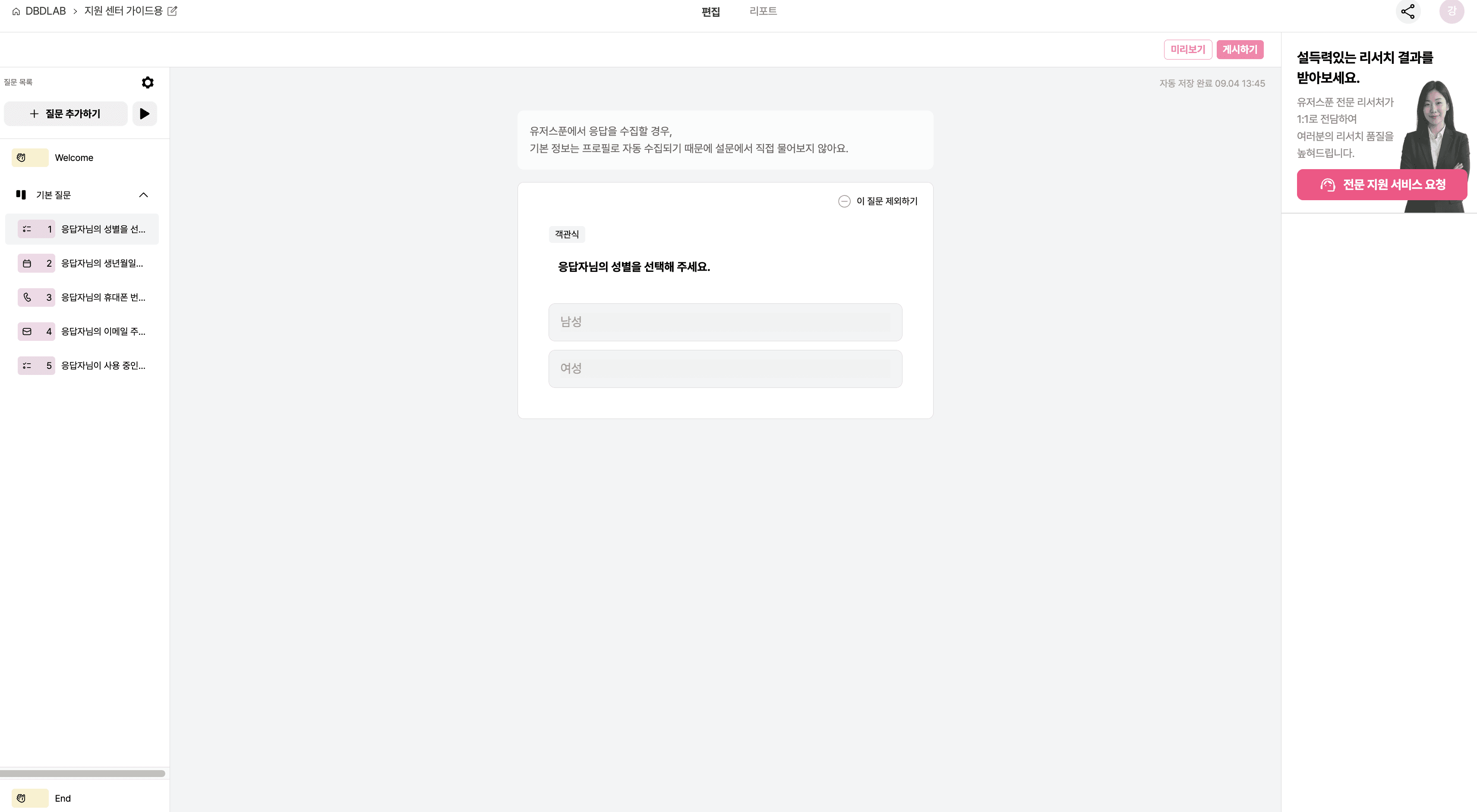
Edit the Survey Form
The questions and functions that make up the survey are called [Content].
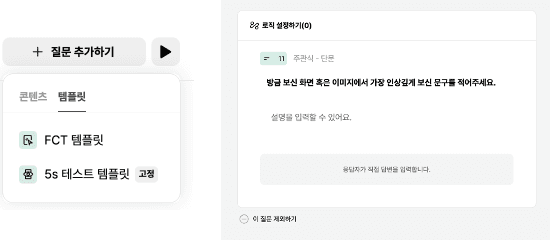
You can add various contents through the add question option.
The arrow next to the add question option is the preview button.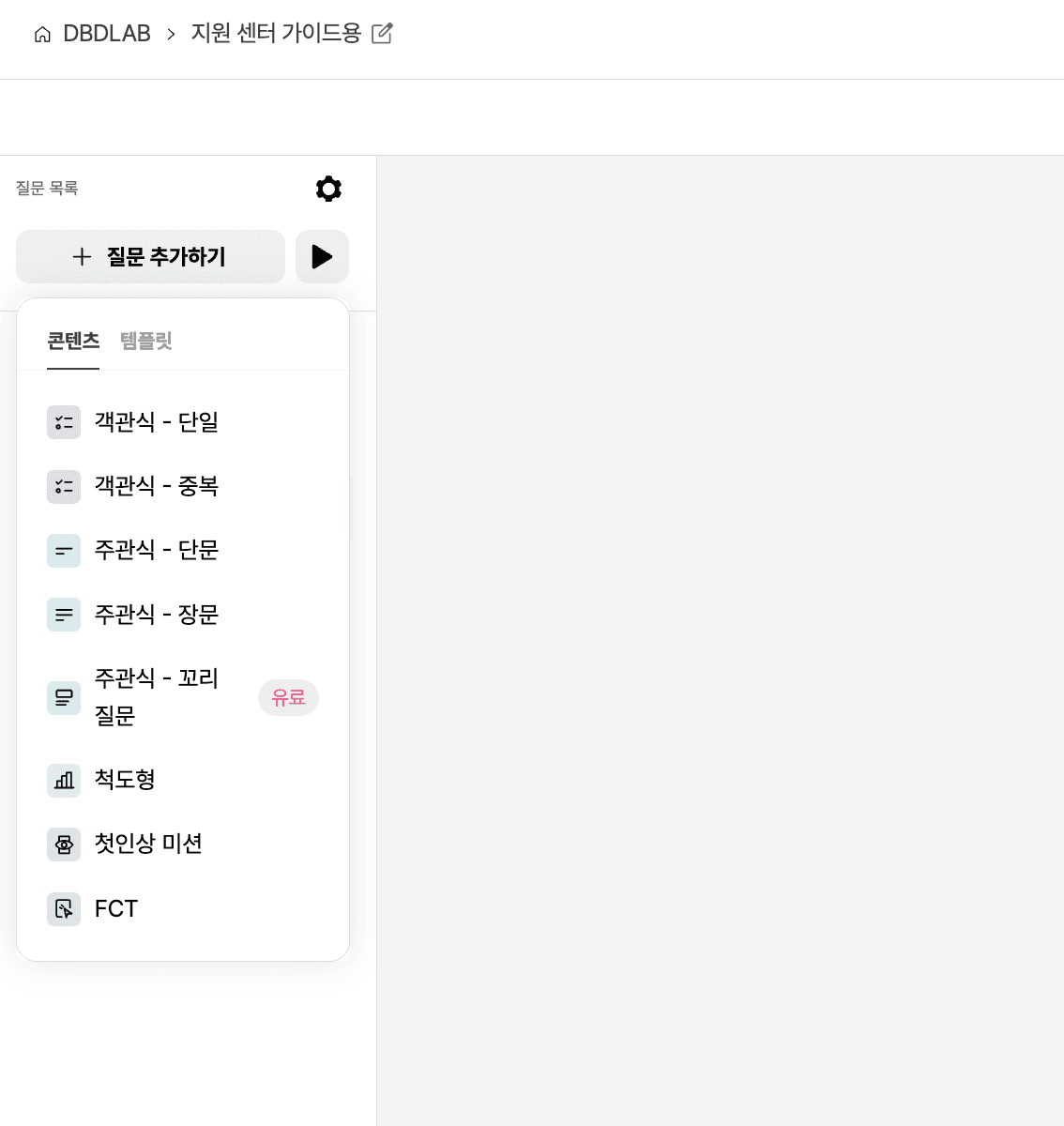
The template is a combination of two or more contents in User Spoon.
Because commonly used questions and mission-type contents are pre-made, it allows you to design questions quickly.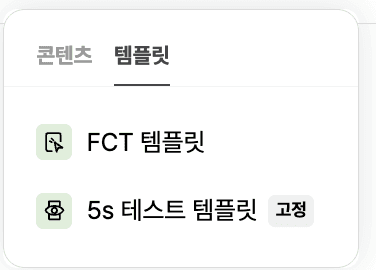
A 5s template with the [Fixed] tag has its analysis method predetermined in the real-time result report, so you cannot modify the order of questions or add questions to the template. You can remove unwanted questions.
The FCT template allows you to change, modify, or delete the order of questions.
I have prepared frequently asked questions to identify respondent information as [Basic Questions].
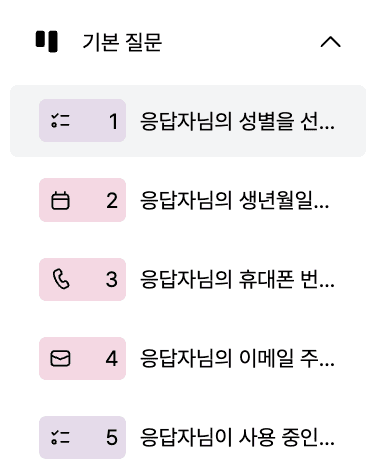
If you recruit through the User Spoon panel, you can collect gender and birthdate even if you don't use basic questions.
The position of basic questions is fixed, so if you do not want to use basic questions, please click the gear icon located at the top right of the add question option to exclude it in the settings.
The Welcome content serves as the cover for the survey.
It's good to write a description or purpose of the survey.
You can modify the text of the start button.
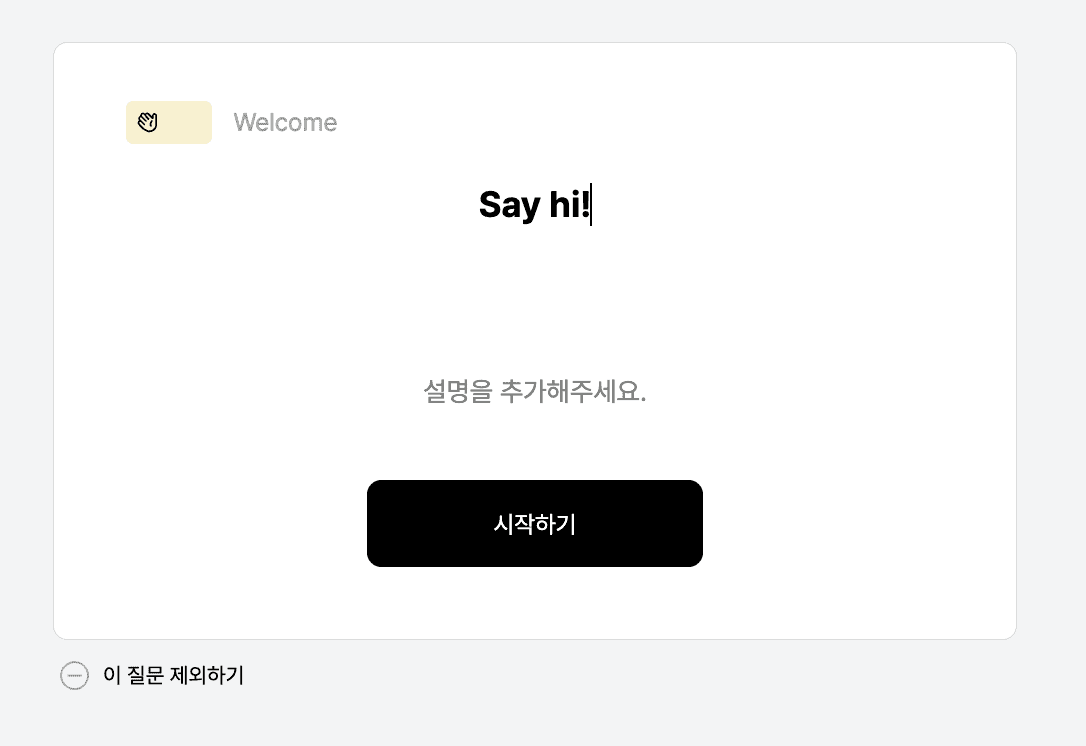
You can delete questions, set logic, and change content types in the editing screen for each content.
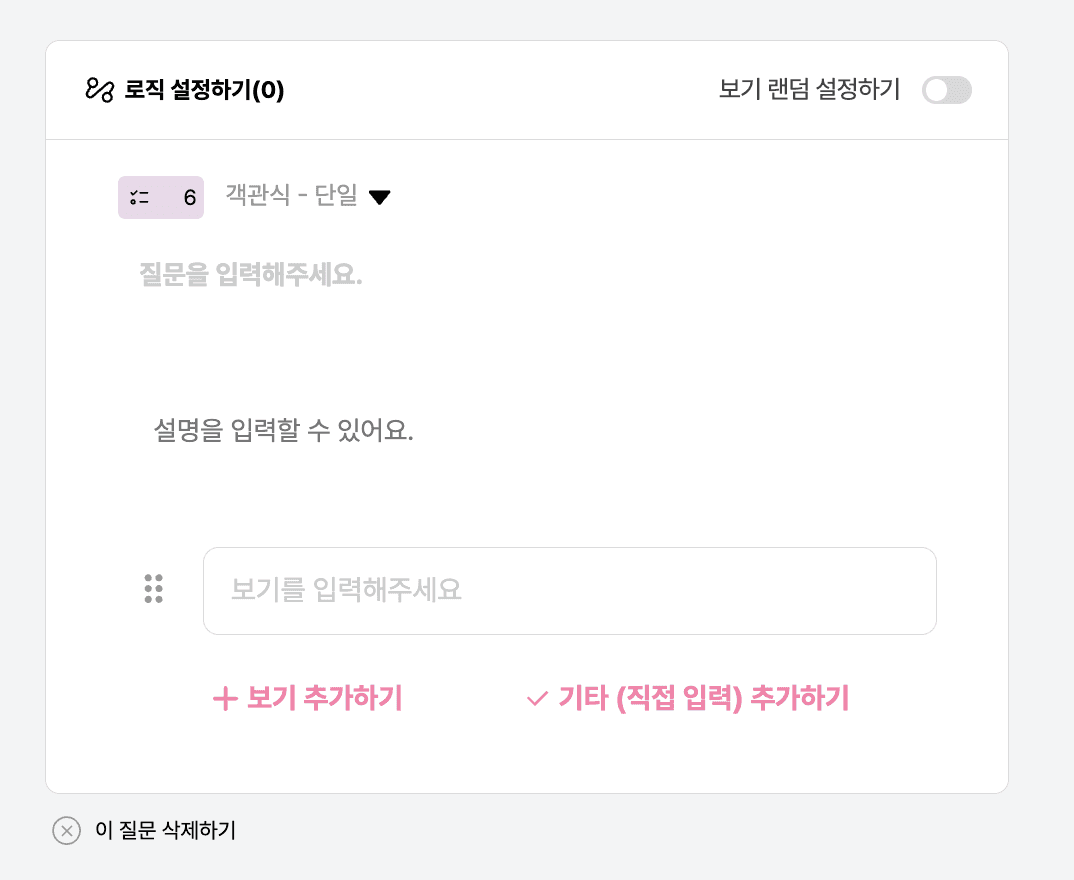
For multiple-choice questions, activating [Randomize Options] will display the options randomly on the response screen. At this time, 'Others (open input)' are always fixed at the bottom.
You can adjust the order after entering the options.
You can set logic for all questions.
The setting for each question directs everyone who answered this question to a specified question.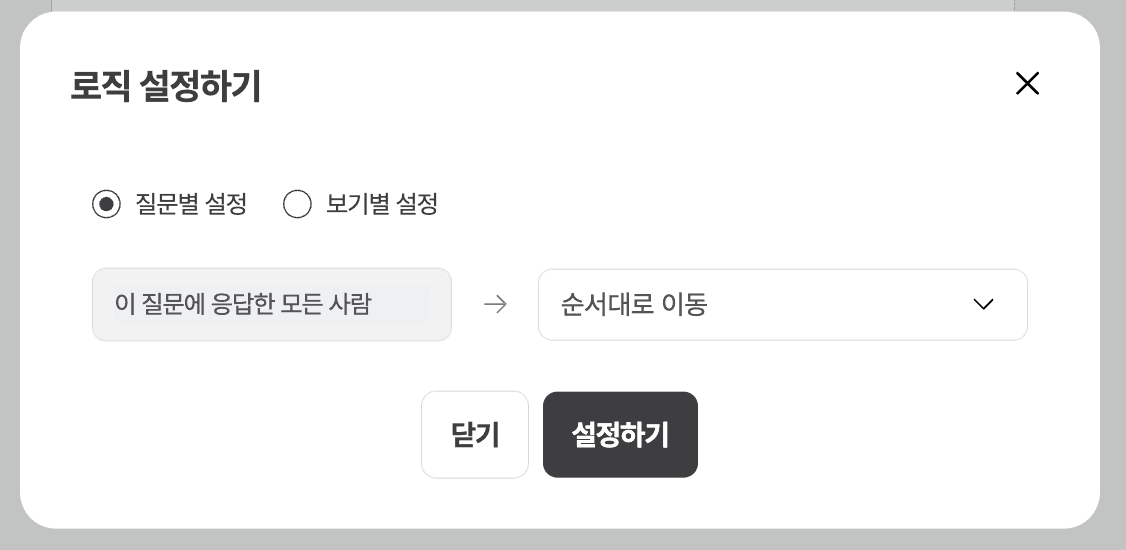
If set to move in order, it will definitely move to the next question.
For multiple-choice content, you can set specific movements for each option. Specify which content to move to for each option.
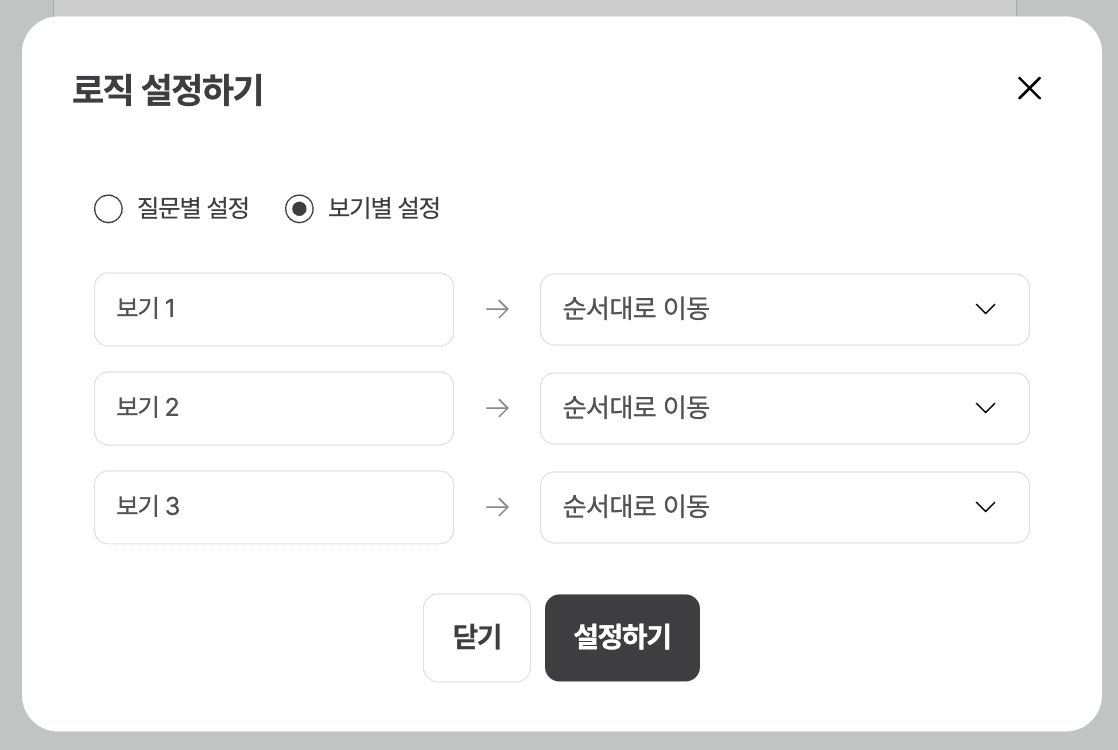
Follow-up questions generate up to two additional questions with AI.
> View Follow-up Question Real Generation and Response Video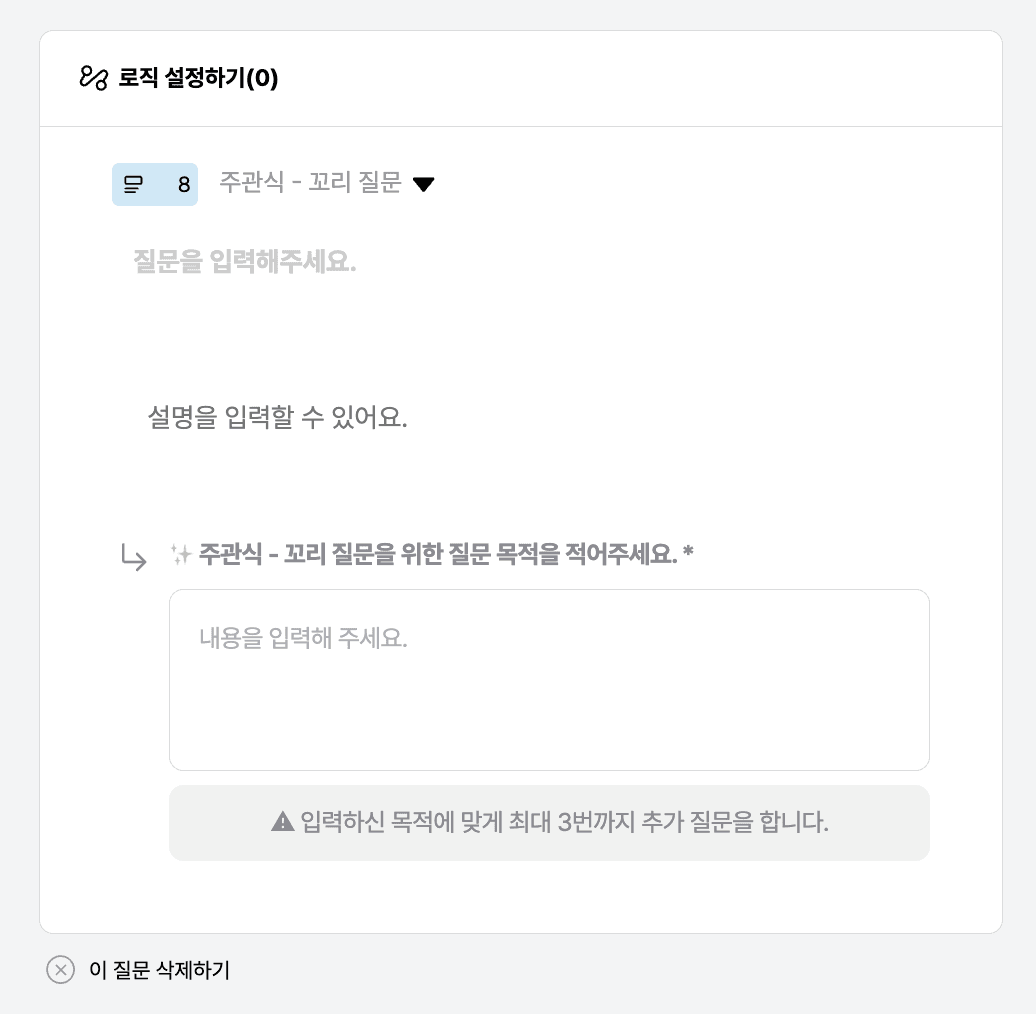
Understand the questions and their purposes you entered, and when the respondent's answer does not meet the question's purpose, you can ask follow-up questions to achieve the question's purpose.
You can get more detailed and specific responses.
The first impression mission displays the screen/ad/product image for 5 seconds and does not show it again.
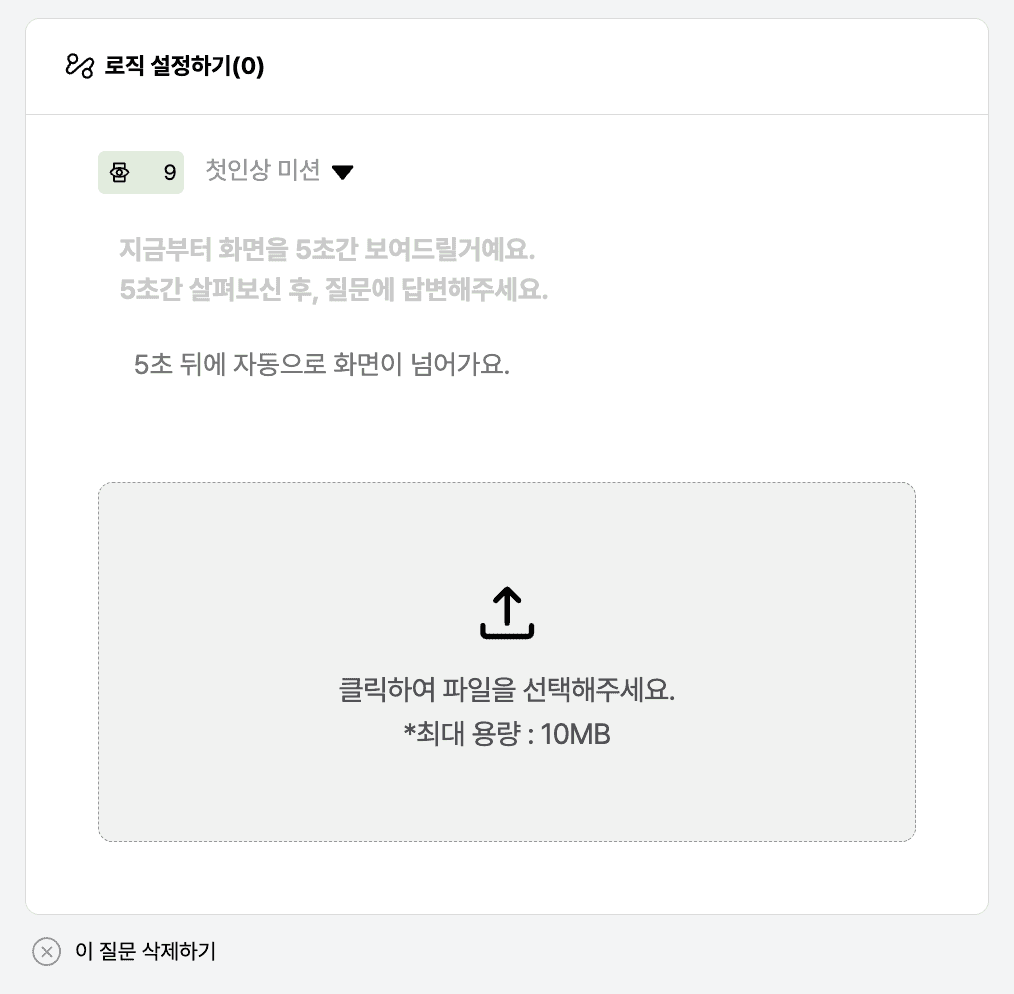
It is mainly used when evaluating landing screens, ad images, and product images.
Compare the open-ended response value of the 5s template to the text within the uploaded image and display it in the result report.
When linking images, please wait until the 'Image Link Completed' toast message is displayed!
The FCT content instructs the respondent to click on the area they think they need to achieve the mission presented in the screen or image.
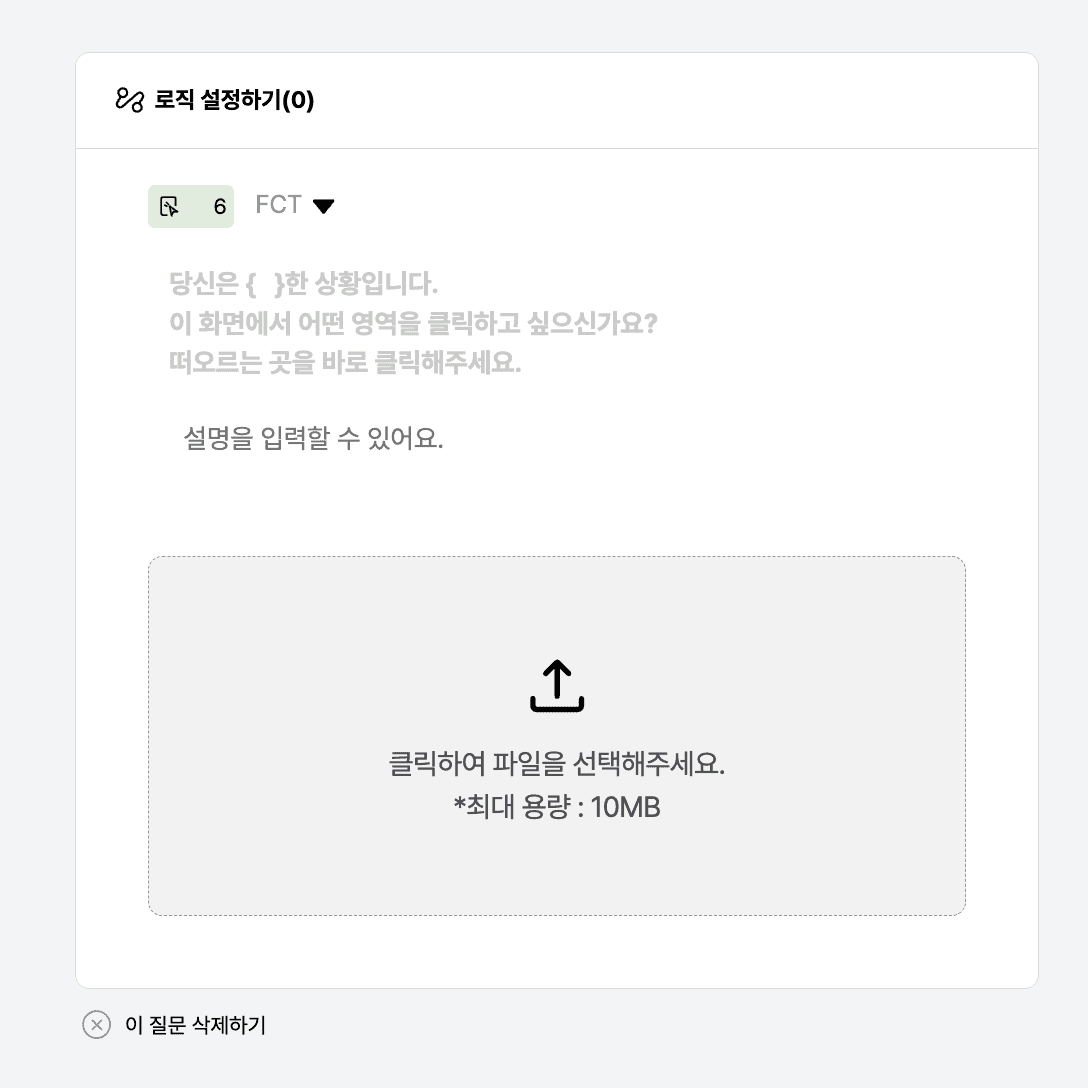
When linking images, please wait until the 'Image Link Completed' toast message is displayed!
> View Real Generation and Response Video of FCT
You can click the gear icon to move to the settings screen.
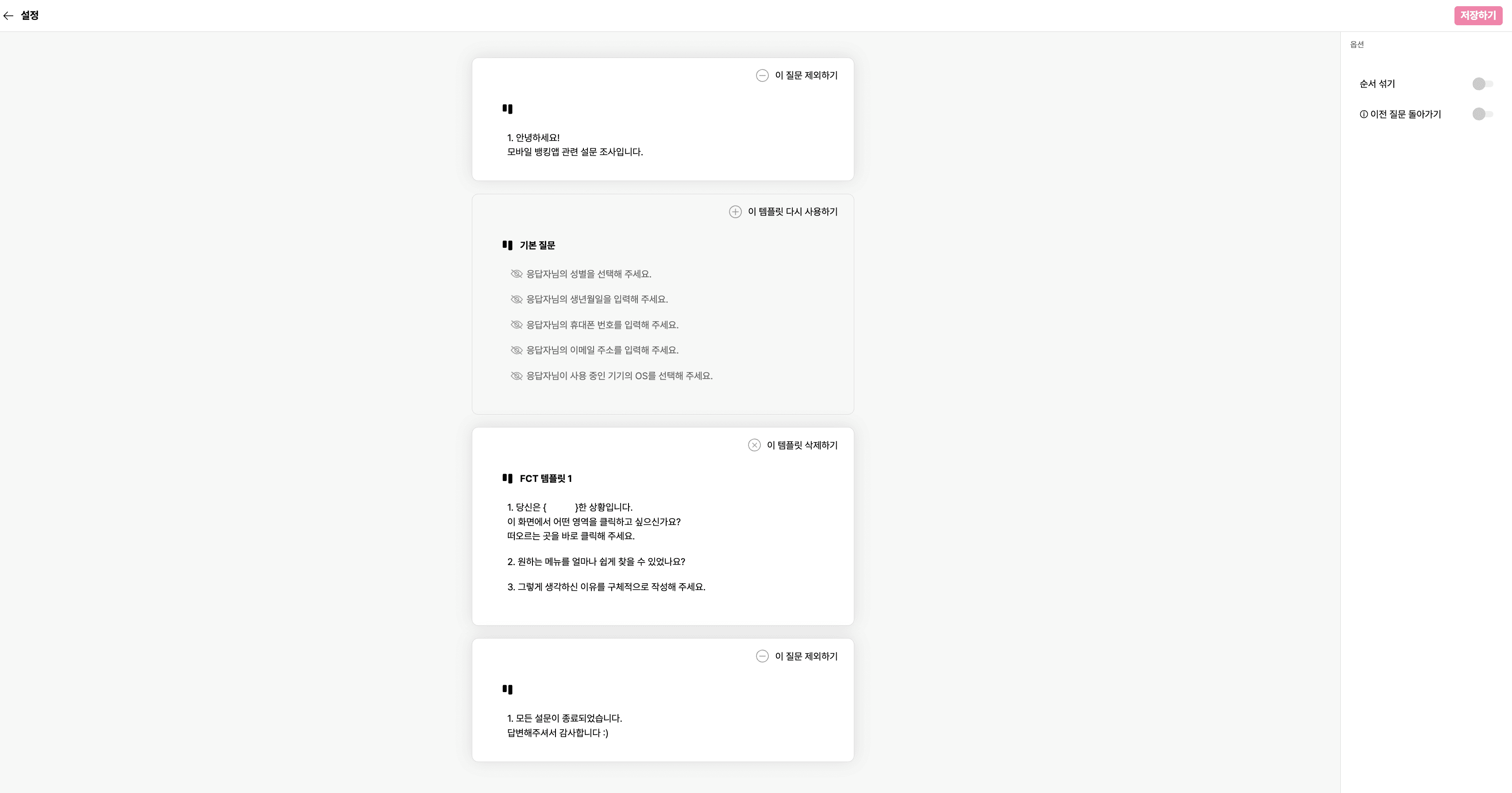
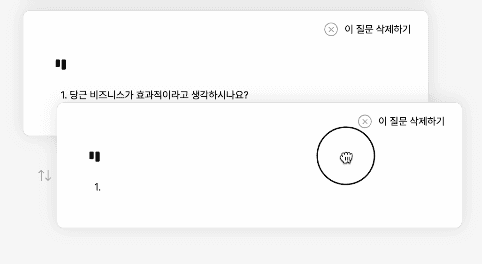
You can easily change the order of questions.
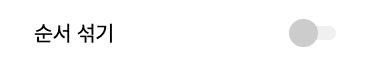
You can display the order of templates randomly.
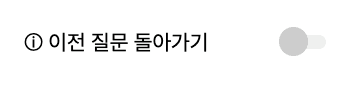
If you enable going back to previous questions, the respondent can modify their response.
Preview the Survey Form
Clicking on preview allows you to check how the questions are displayed on the actual response screen without submitting a response, and whether the logic is set correctly.
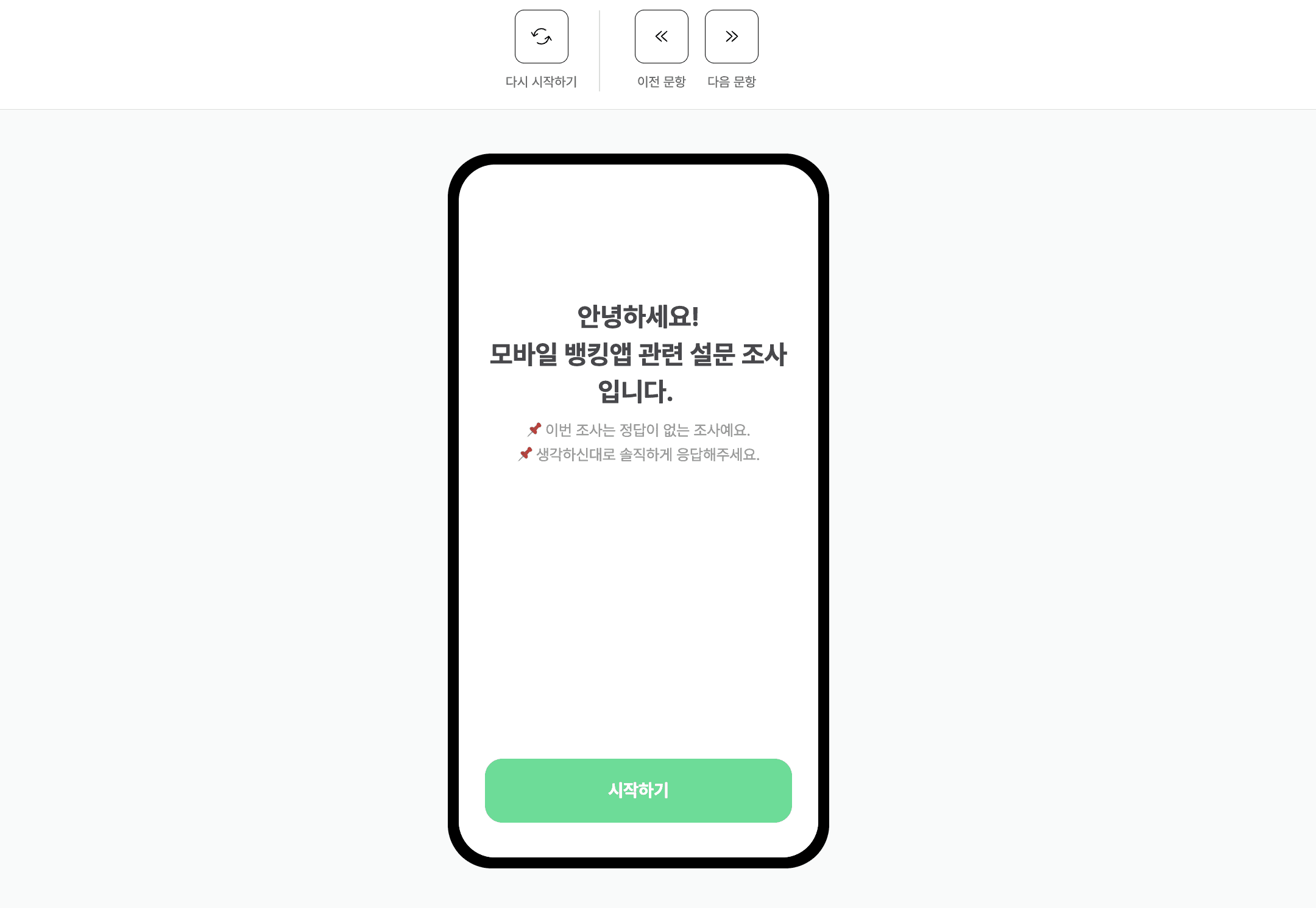
The [Restart], [Previous Question], and [Next Question] at the top are controllers.
You can move to the next question even without actually responding.
If there is logic, the next question is displayed unconditionally, ignoring logic.
You can go back to the previous question without setting [Go Back to Previous Question] in the settings.
If you respond within the actual mobile frame, you can test the logic.
Publish and Share
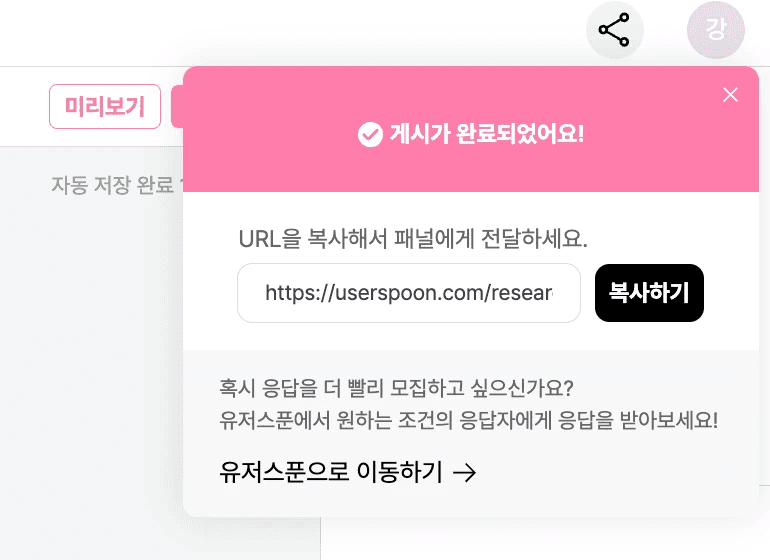
Click on Publish in the top right corner to create a response link that reflects all the information you have edited.
🚨 Important Notes After Posting
|
|---|
Create and Publish a Survey with the Figma Plugin
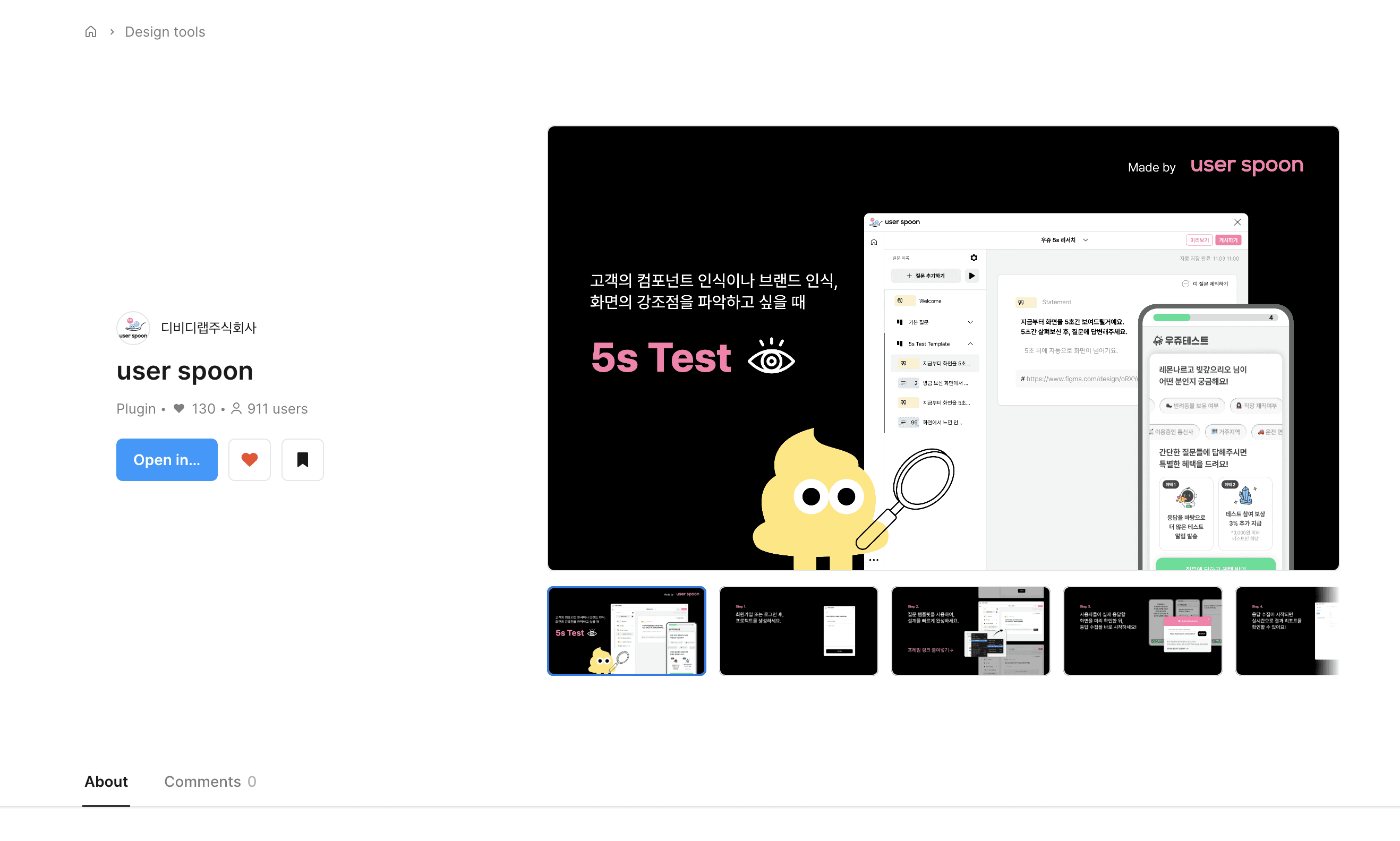
User Spoon surveys can also be found with the Figma plugin!
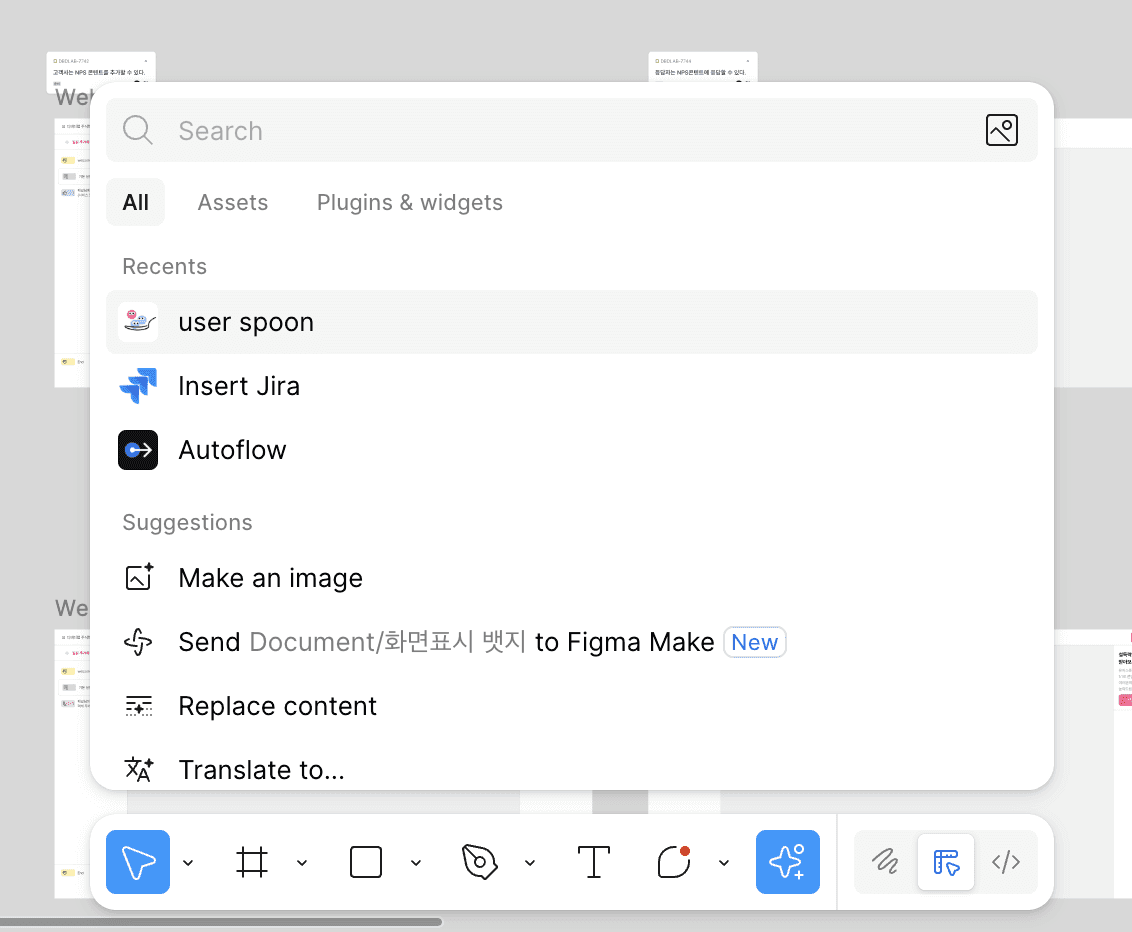
Please download the User Spoon Figma Plugin.
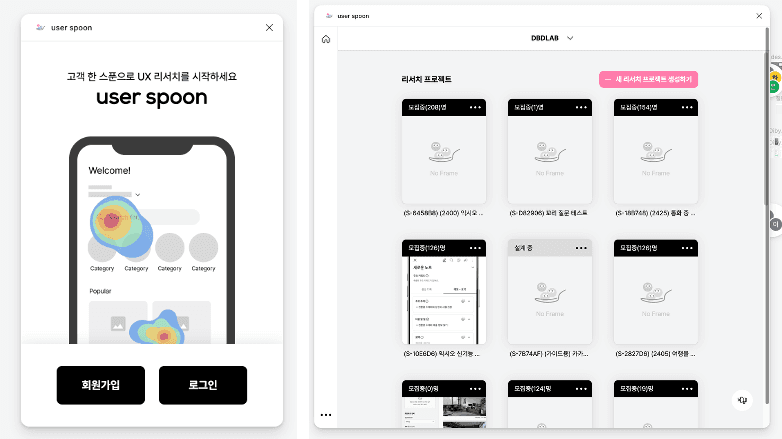
After logging in/signing up in the Figma plugin, the dashboard will be displayed.
You can edit and publish surveys in the plugin just like on the website!
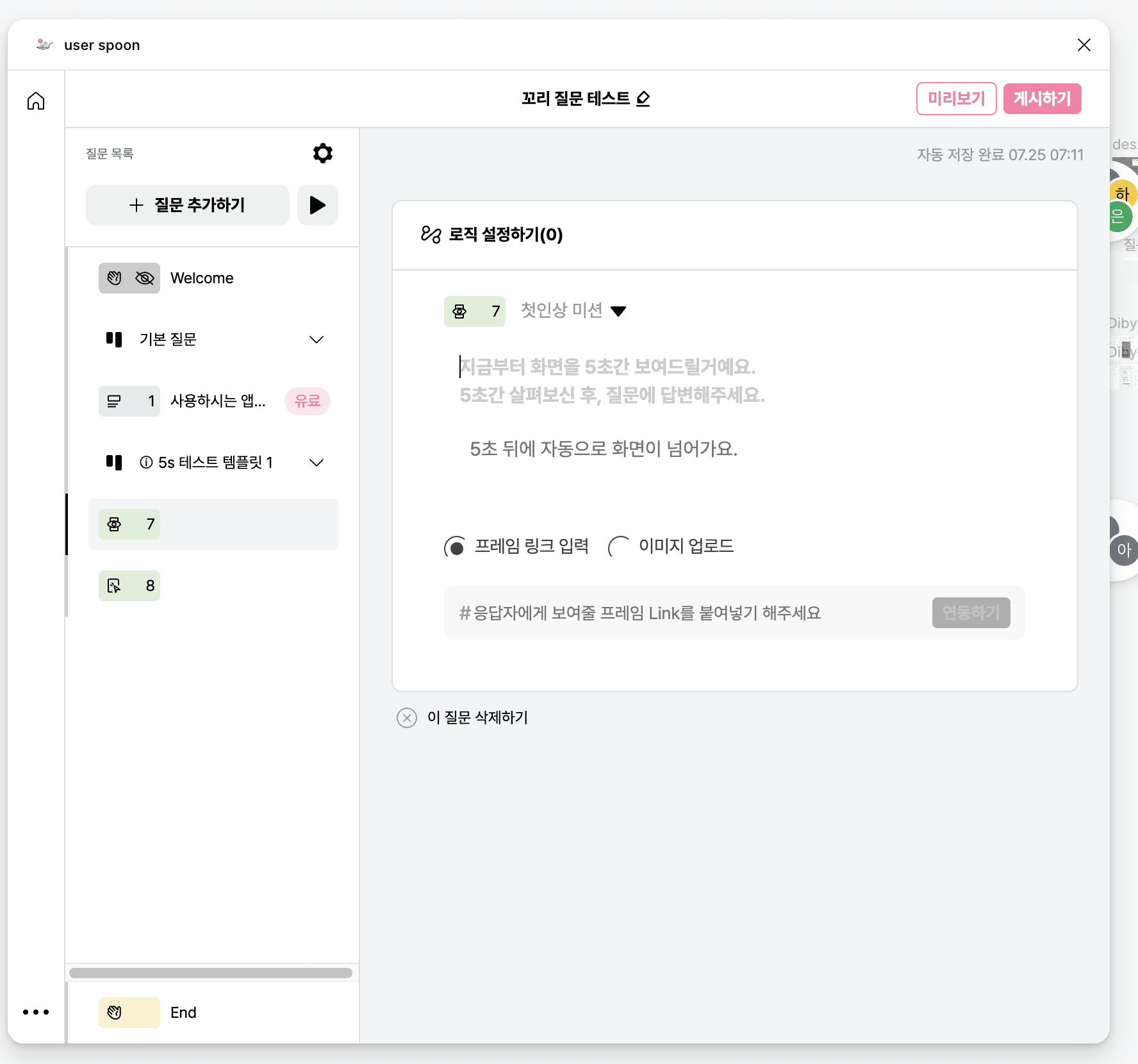
If you use Figma, you can enter the frame link without saving images to link the images.
The surveys created in Figma will also be shown on the User Spoon website!