Maximizing the User Spoon Real-time Results Report 100%
Navigating to the Report Tab
You can move by clicking the [Report] tab at the top center of the survey editing screen.

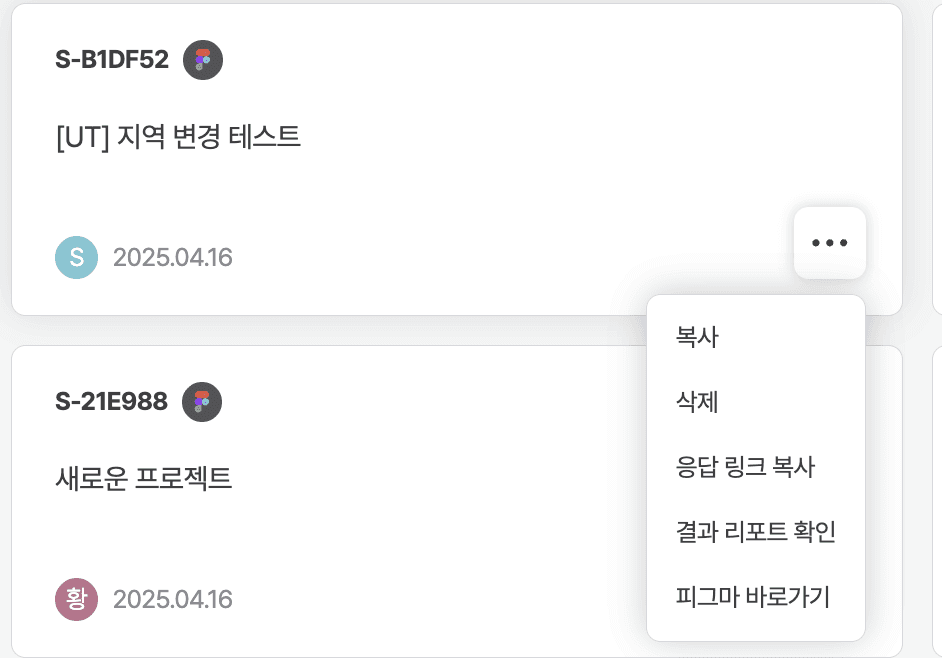
You can directly go to the results report by clicking the meatball in the survey form list.
Detailed View of the Report Tab
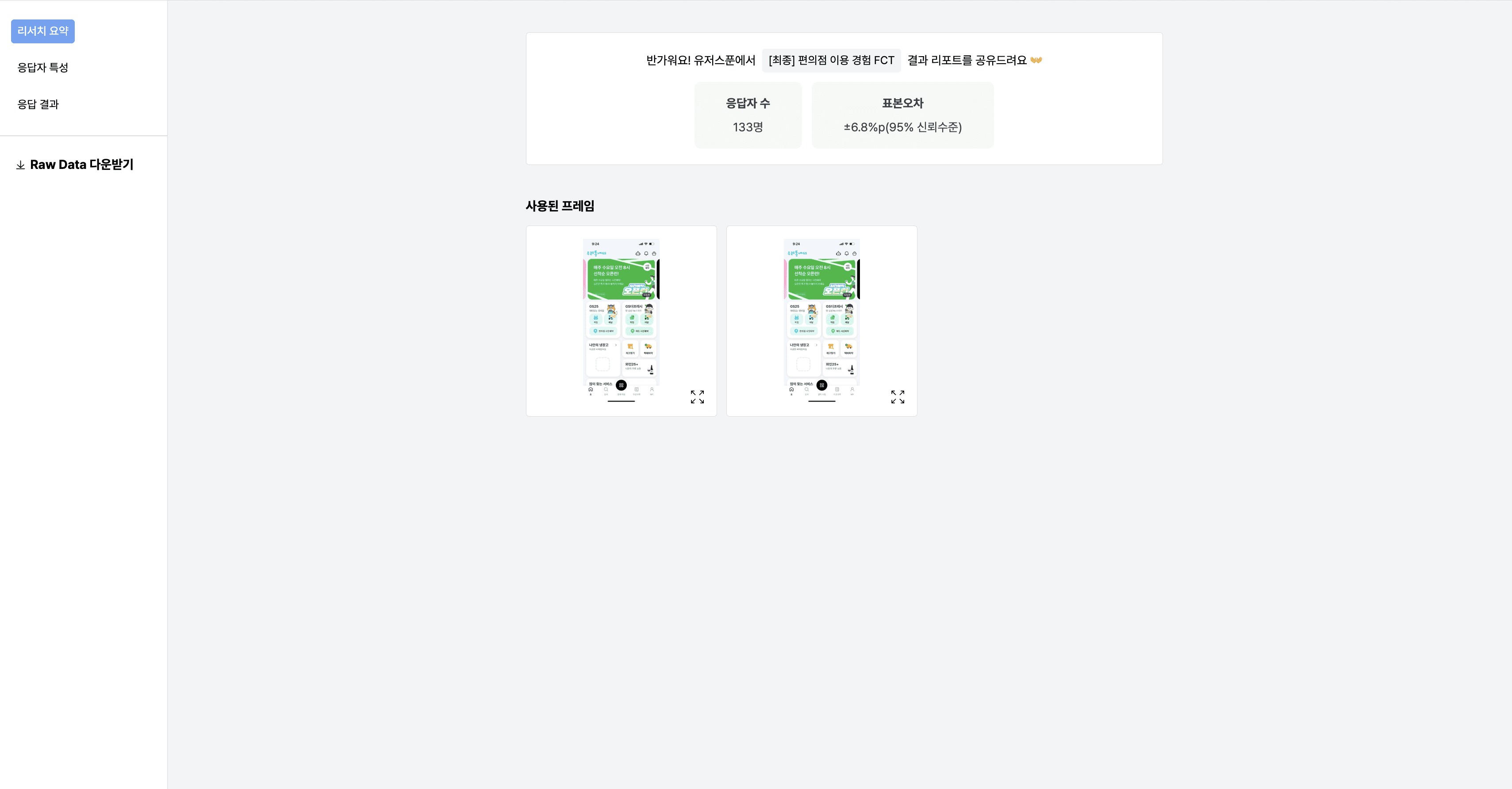
Research Summary shows the total number of respondents, sampling error, and the images used.
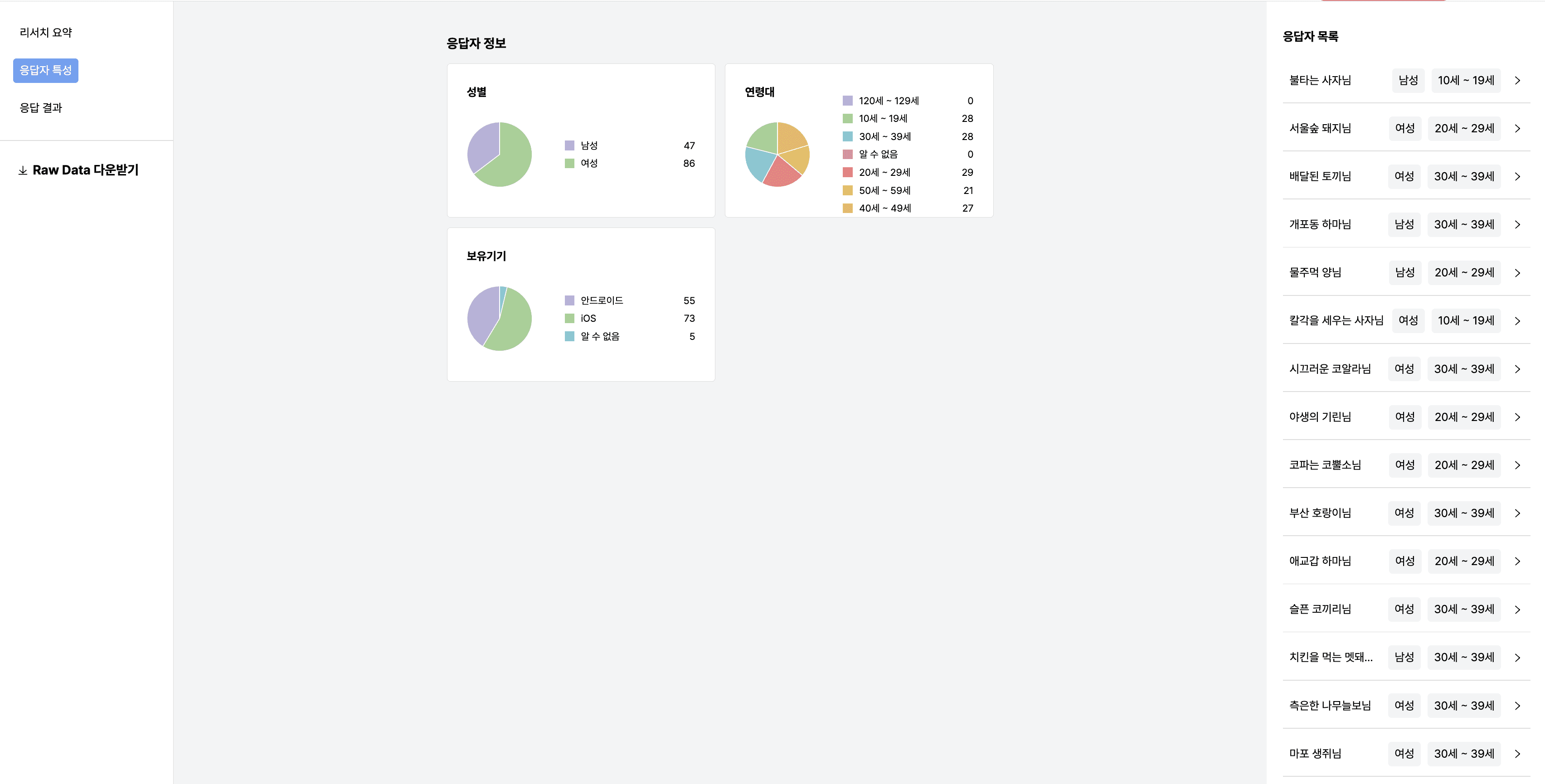
Respondent Characteristics displays the gender, age range, and device information of the respondents who participated in this survey.
Detailed View of Response Results
The basic questions are displayed as filters, and you can check each question in individual question lists.
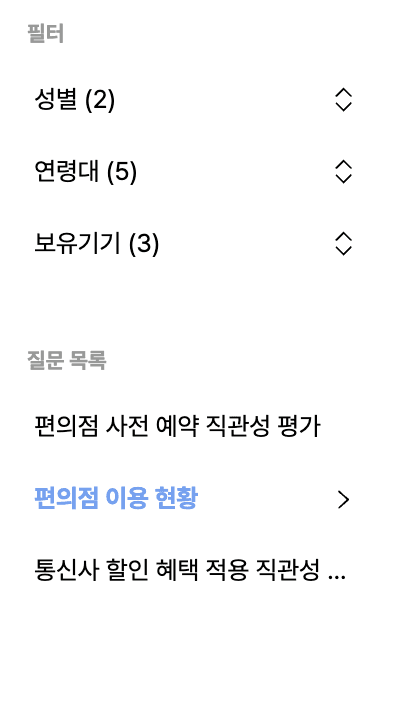
If you group questions by template, you can view multiple questions in one section.
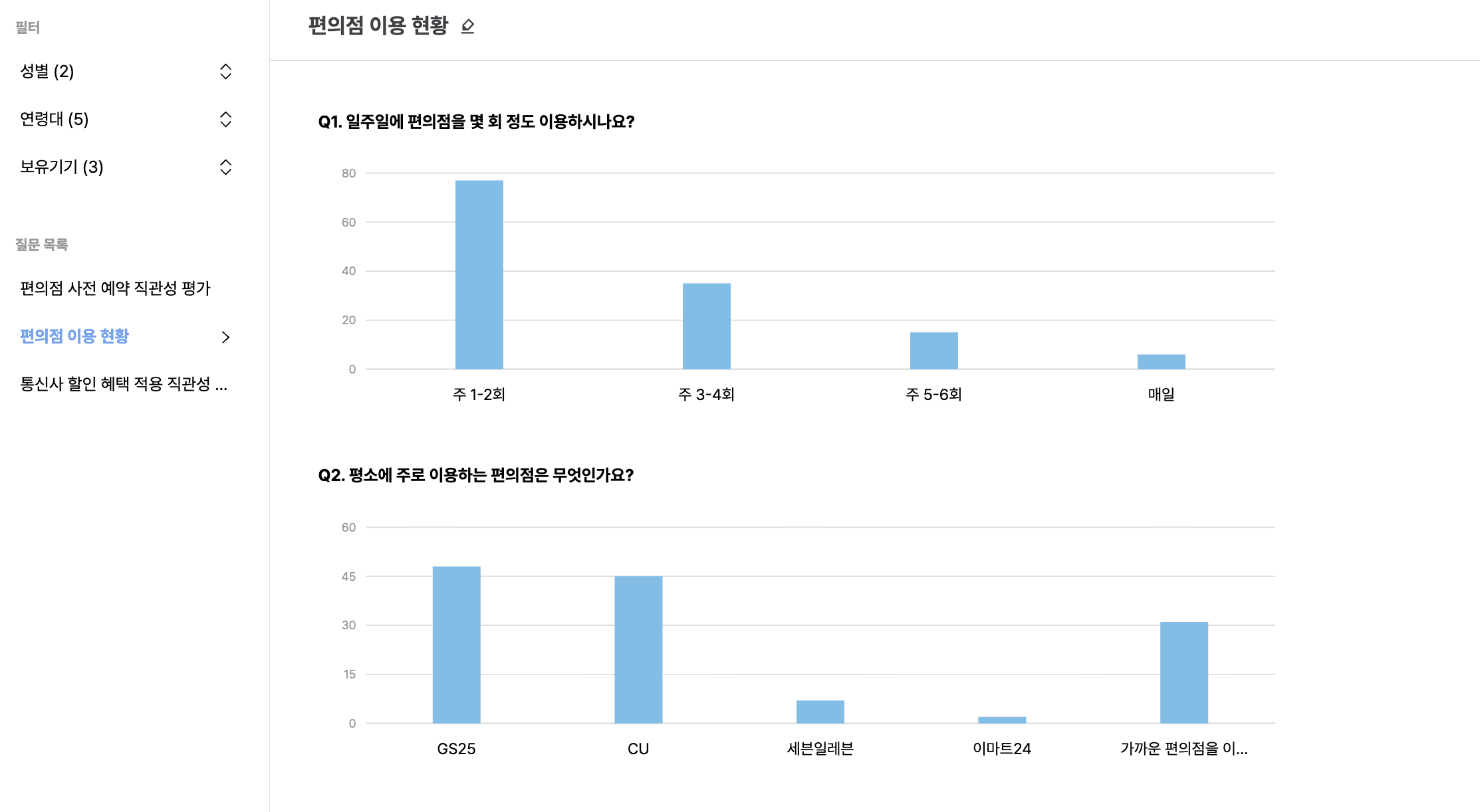
The report display method changes by content.
Long-form open-ended responses are summarized.
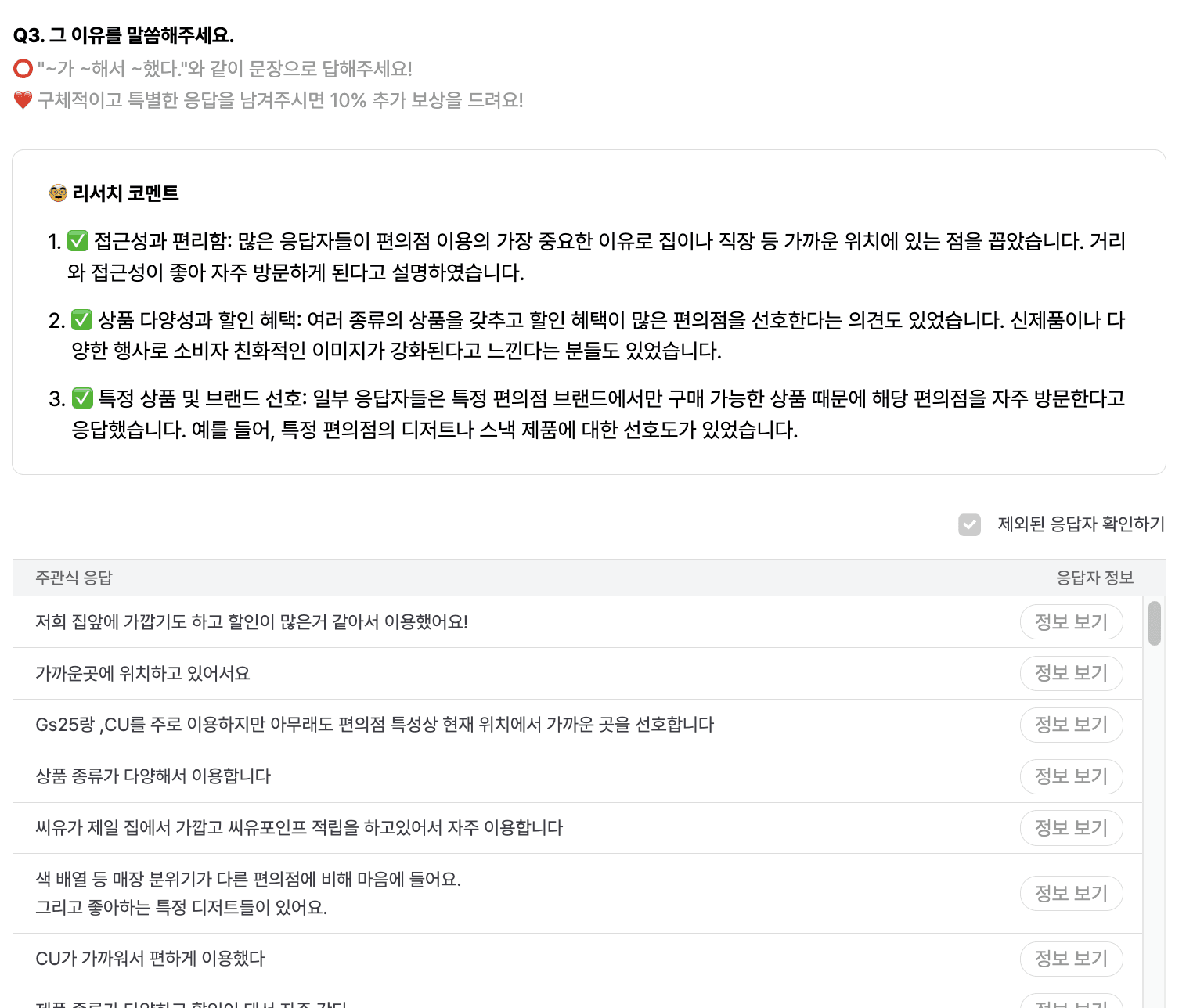
The summary and the original response are displayed.
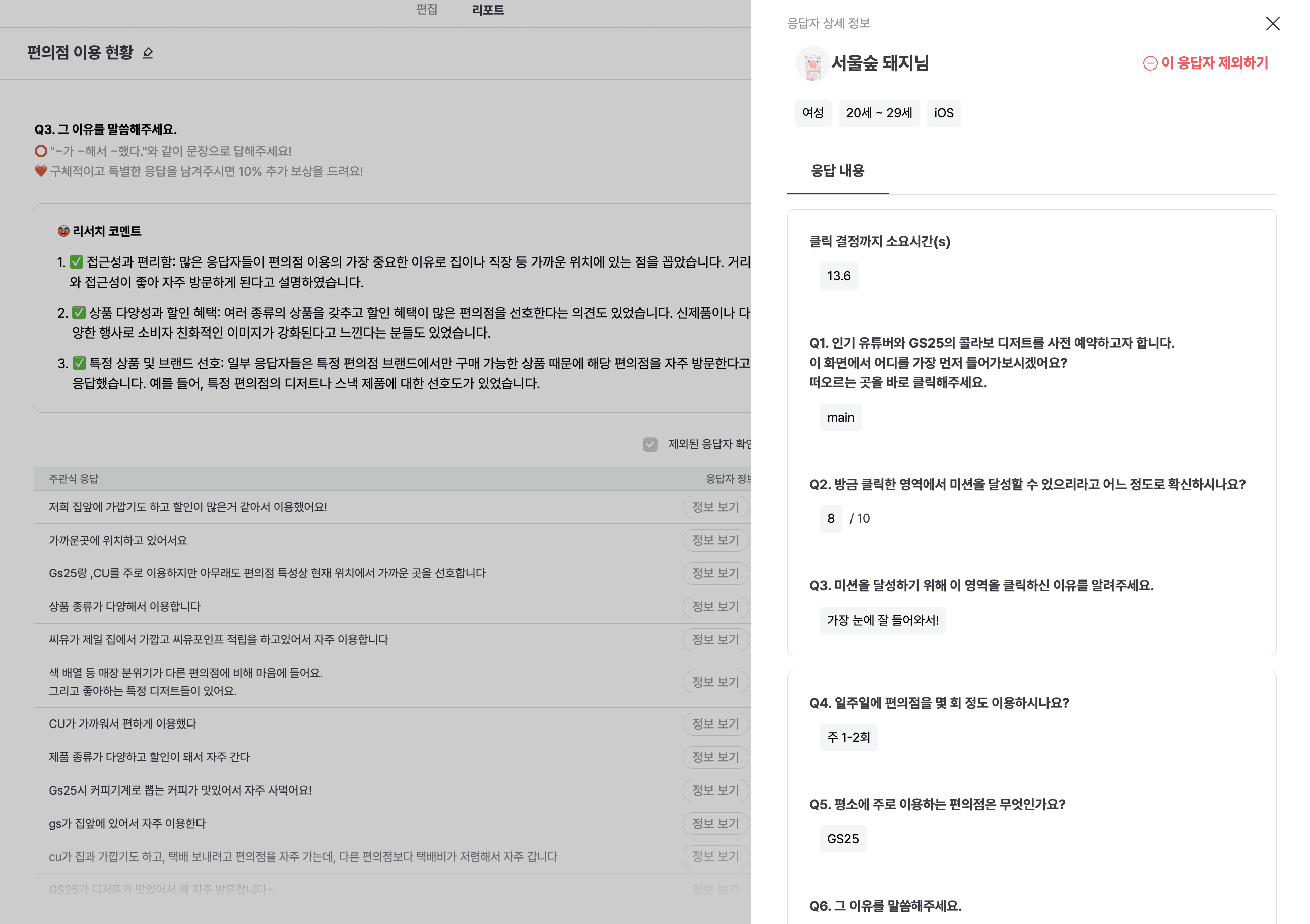
If you click [View Information] on the left side of each response, you can check the entire response of that respondent or exclude the respondent. Try applying this when you want to exclude untrustworthy respondents from the report!
If you use first-click content, you can check the bubble chart and time taken for click per associated image.
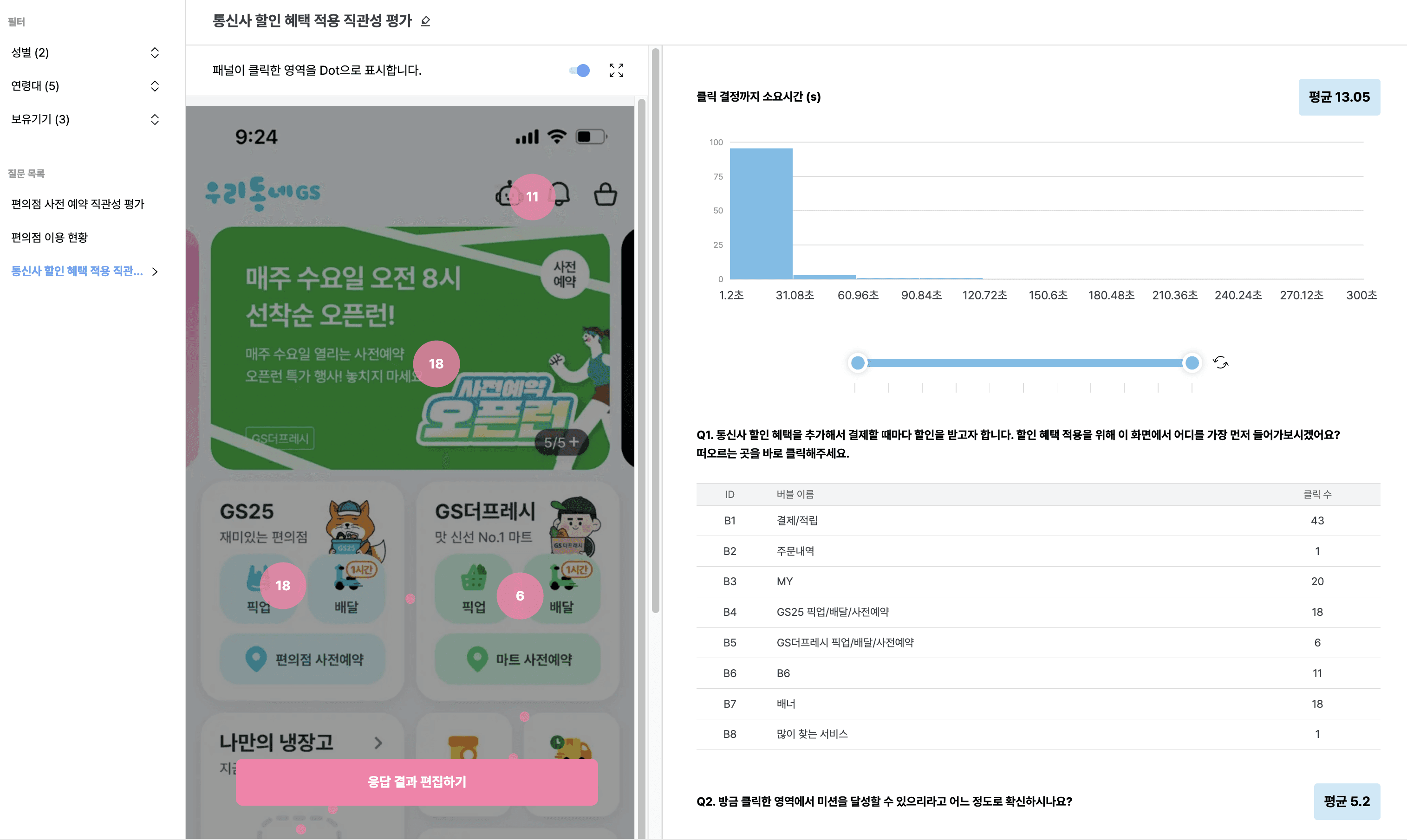
Clicking the bubble filters the time taken and responses.
When you click on Edit Response Results, the area clicked by the respondent is marked with a dot.
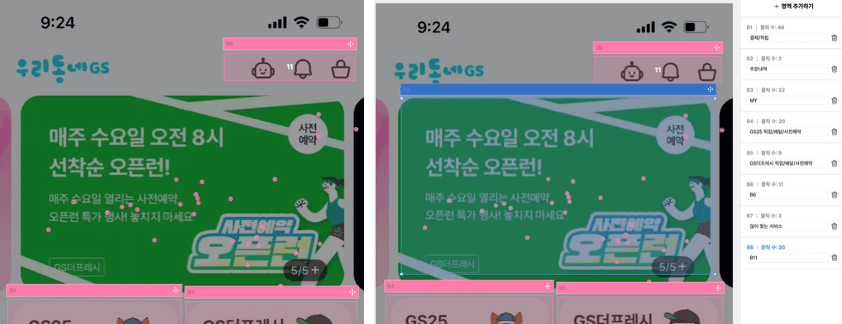
If you drag and specify the area you want, the dots belonging to that area will be grouped into bubbles.
Multiple-choice and scale-type responses are shown as bar graphs.
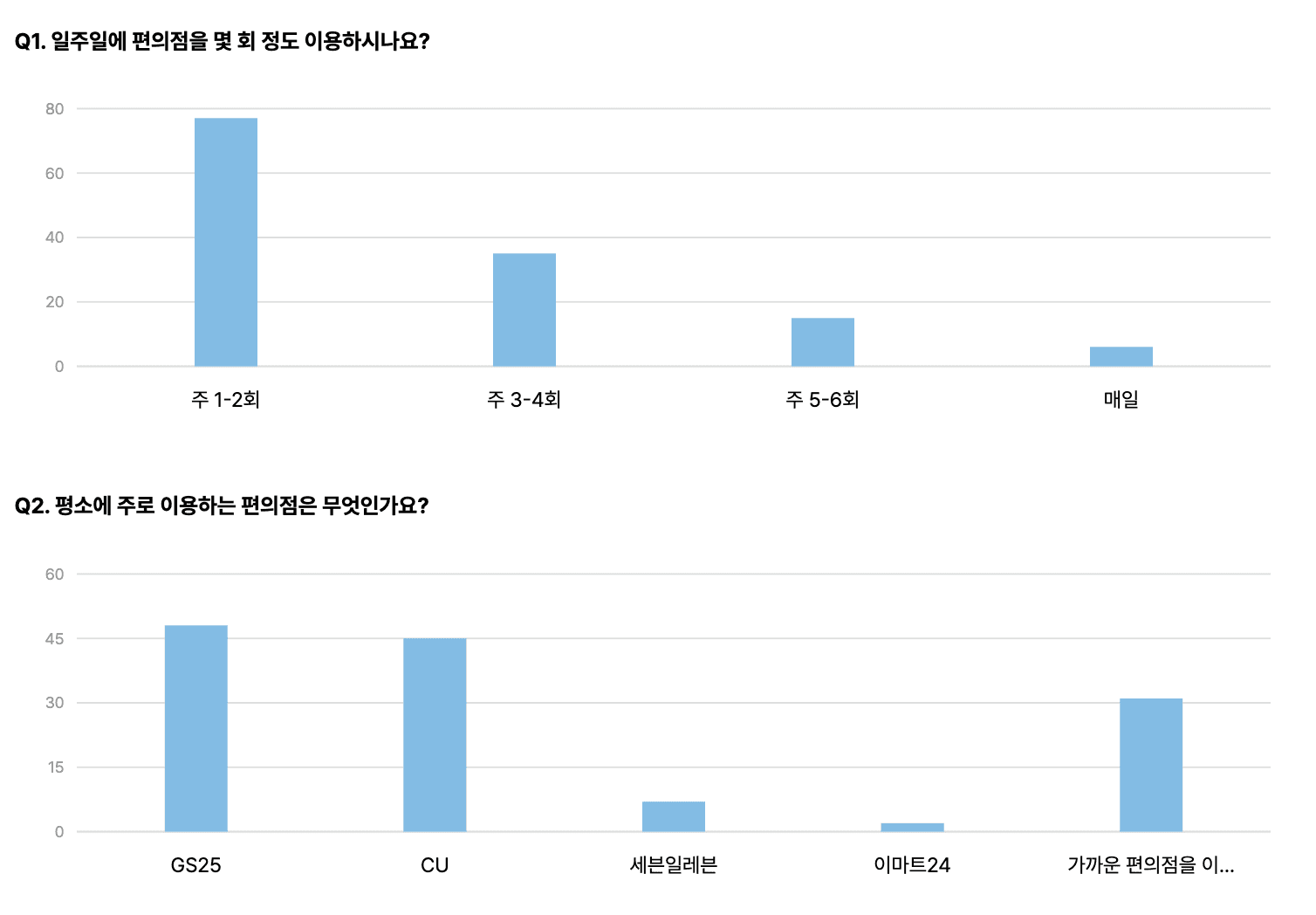
If they are in the same template, you can click the bar graph to drill down.