Profile questions are common surveys to notify about panel registration and to obtain consent for the collection and use of personal information.
After uploading the Excel file, profile questions will be sent to all registered panels!
Initial sending: 5 PM on the day of upload
If uploaded after 5 PM: Automatically sent at 5 PM the next day
After that, questions will be automatically resent according to the schedule for modifications or updates.
Profile questions consist of two parts.
Mandatory profile: Consent to personal information, mobile phone number verification, gender, age
Basic questions: Information that needs prior confirmation from users before research, such as marital status, number of household members, rental experience, etc.
⚠️ Note: After consent is completed, personal information of brand panel members such as gender and age will be collected. This is for safe collection and management.
1. Mandatory Profile (Consent to personal information, mobile phone number verification)
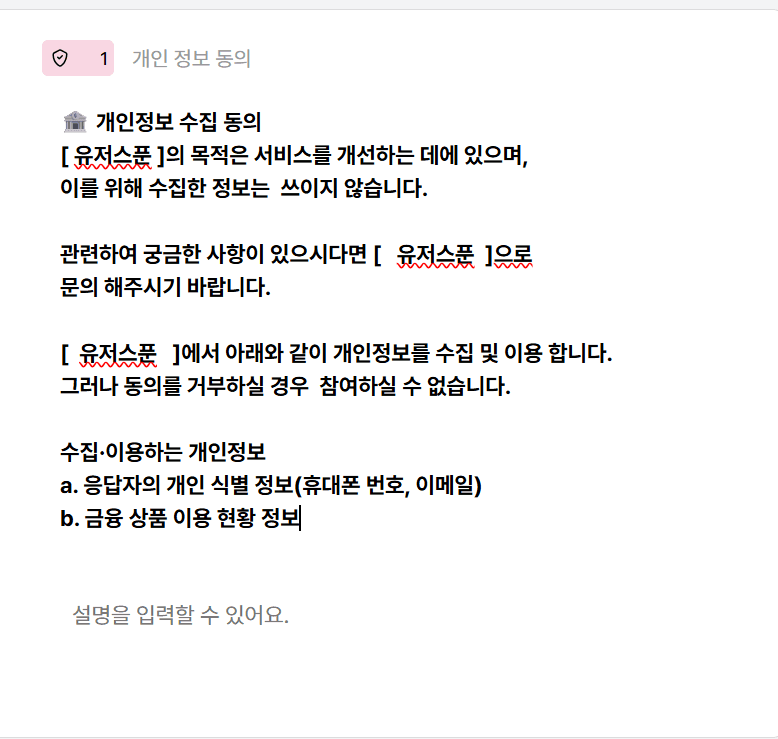
1) Consent to personal information
Consent for personal information collection is obtained along with the brand panel notification.
Please clearly specify the collection items and purposes based on the standard form.
If there is no consent, the profile survey will automatically terminate and panel registration will not occur.
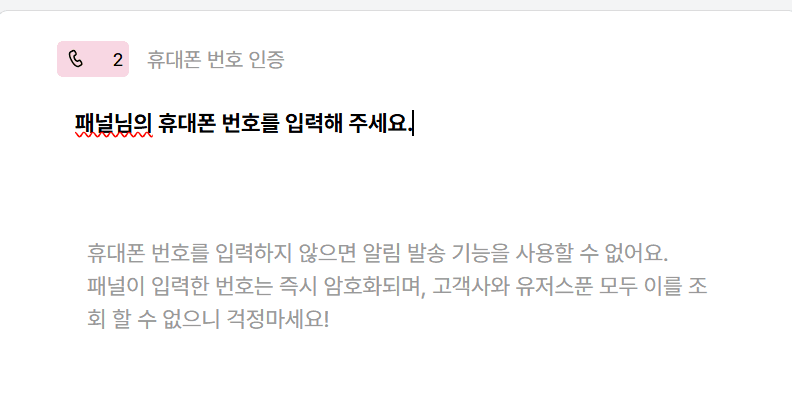
2) Mobile phone number
*Authentication via mobile phone number is carried out for users who consent to the collection of personal information.
2. Basic Questions
1) Setting location
Please go to 'Profile Management' in the left menu → Move to profile questions.
This is the space for setting the profile information to be collected from the panels.
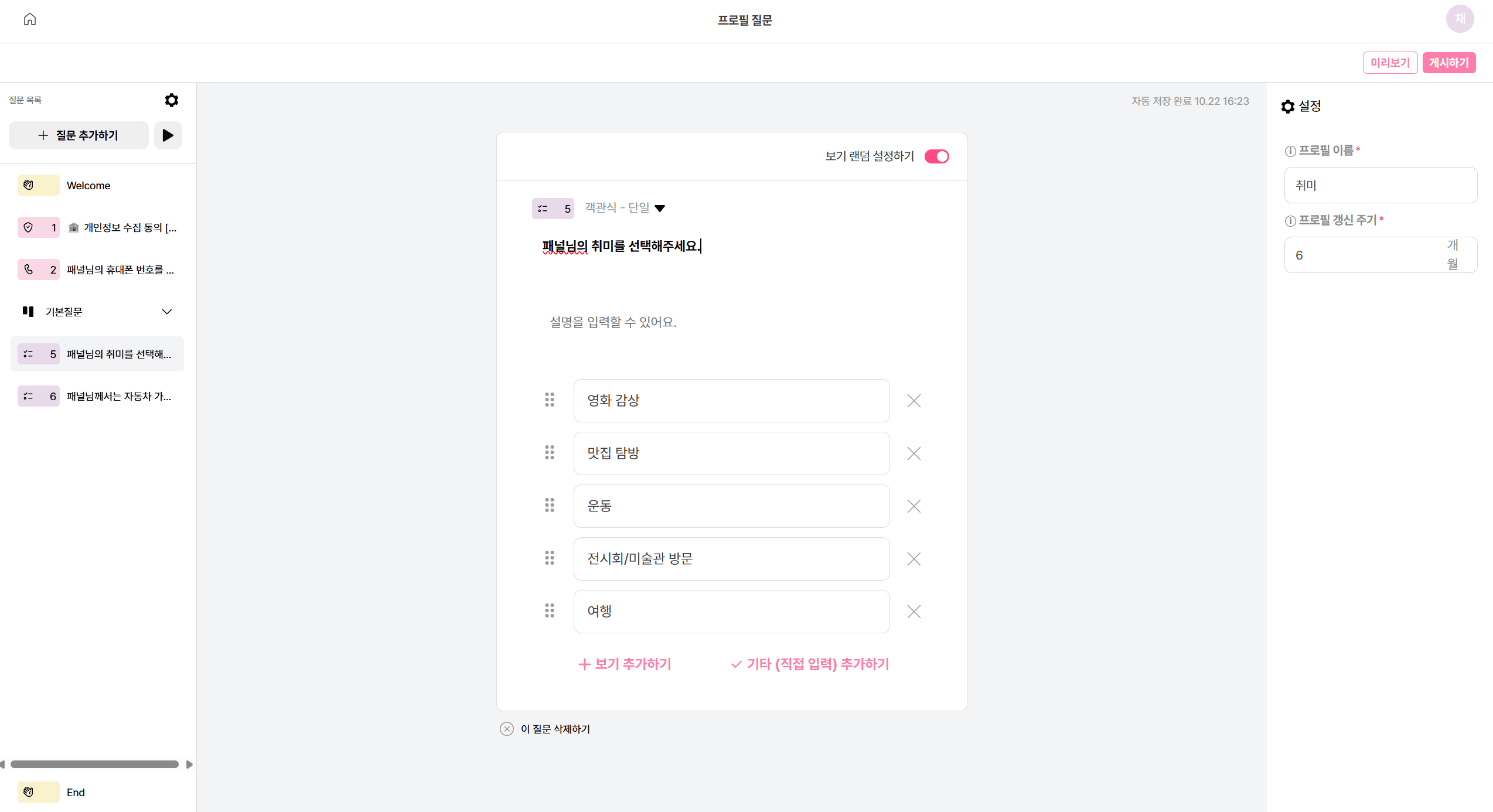
2) Adding profile question items
Click [Add Question] on the left to create a new item.
Question type: Multiple choice (single/multiple), scale
💡 It's easy to think of creating a screening question before the survey.
3) Setting the profile question name and update frequency
Enter in the setting area on the right.
Profile name: This is the column name displayed in the panel management list.
Profile update frequency: Enter the information update frequency (e.g., 6, 12 months) as a number.
Please set information that changes over time, such as marital status, recent travel countries, and hobbies, to be updated regularly. Automatic update requests will be sent at each set time.
4) Posting and confirmation
Once all profile questions are completed, please click [Post] in the upper right corner!
How to confirm
You can check the profile questions that the panels will respond to by clicking [Preview].
Alternatively, you can also check through the [Response Link] that appears after clicking to post.
🍯 Tip! Checking for omissions/typos in the preview before posting can reduce the number of corrections needed after sending.
3 Profile Update Frequency
If there are additional profile questions, panels will receive profile update notifications daily at 5 PM.
Panels that updated before 5 PM will receive notifications at 5 PM on the same day,
and panels that updated after 5 PM will receive notifications at 5 PM the next day.